|
Download an evaluation copy of MapLogic Layout Manager. |
 What's New In
MapLogic Layout Manager
What's New In
MapLogic Layout ManagerNew Features In Version 5.0
Version 5.0 adds a number of new element types to MapLogic Layout Manager as well as enhances a number of existing capabilities.
Detail Frame
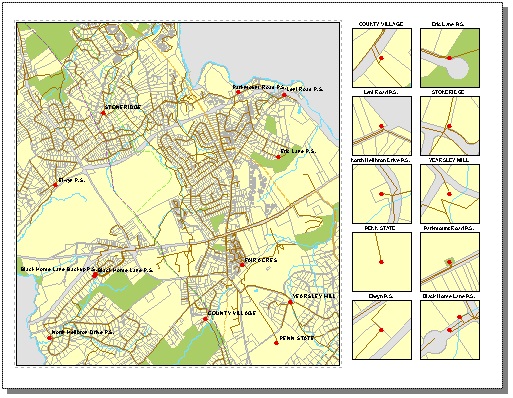
Version 5.0 adds a new element to the collection MapLogic layout elements called a Detail Frame. A Detail Frame is an area set aside on the layout for detail maps. Detail maps are created based on a user-selected layer. As the map moves from page to page, the detail frame will examine the layout to see if features from the selected layer are present on the visible extent of the map and automatically generate detail maps highlighting the location of the features.
The detail frame is not the same as a single detail map. The detail frame represents and area on the layout that is reserved for detail maps. The detail frame will fill this area with as many detail maps as there are detail features in the visible extent of the map up to a maximum number that will fit within the boundaries of the frame. The heading, size, scale and layers present in the detail maps are all parameters that are set by the user.
This feature requires a Pro license
Legend Symbol Labeler
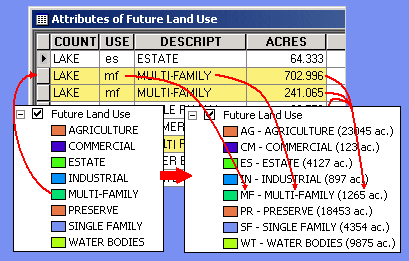
The Legend Symbol Labeler is designed to make it much easier to create custom legend labels based on the data contained in the attribute table of a feature layer in ArcMap. Instead of having to create a summary table and then manually type the results into a layer's legend, you can now automate the process by creating an expression for the labels.
EXPRESSON: [TYPE].First.UCase - [DESCRIPTION].First ([ACRES].Sum.Round(0) ac.)
In the above example, the label is created by combining the value of three fields: the "TYPE" field changed to uppercase ("[TYPE].First.UCase"), the "DESCRIPTION" field ("[DESCRIPTION].First") and the sum of the acreages in the "ACRES" field rounded to 0 decimal points ("[ACRES].Sum.Round(0)"). The actual label that appears in the legend might look like the following:
R1 – Residential (52,356 ac.)
This tool has been available from MapLogic as a stand-alone software product. It has now been incorporated into MapLogic Layout Manager at the Pro license level. Furthermore, these expression based labels can now work in concert with other parts of MapLogic Layout Manager so that, as you move from page to page, the legend will update itself to represent information about that page rather than the entire map.
Map Series Dynamic Layer Definition Queries
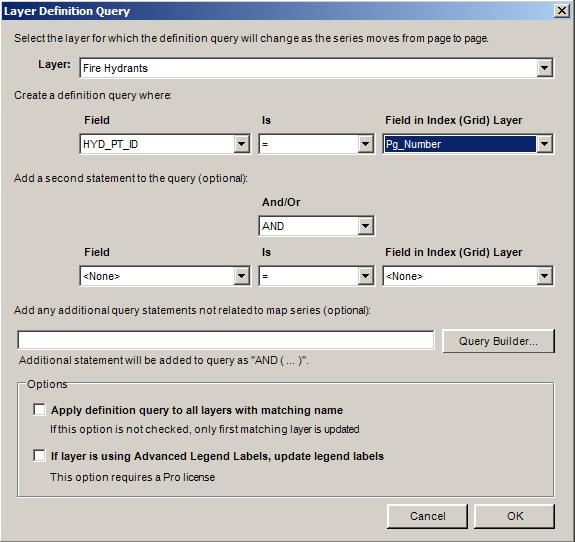
Prior to version 5.0 users were required to use custom code to update the definition queries of layers as a series moved from page to page. This functionality has now been added as a property of the Map Series Frame and can be accessed through the Map Series tab on the Data Frame Properties dialog.
This feature is available for Basic, Advanced and Pro licenses.
Map Series Dynamic Map Projections
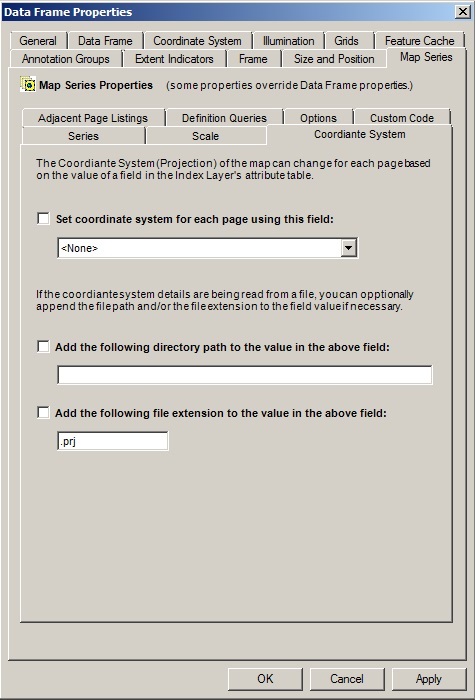
Prior to version 5.0 users were required to use custom code to update coordinate system of the map as a series moved from page to page. This functionality has now been added as a property of the Map Series Frame and can be accessed through the Map Series tab on the Data Frame Properties dialog.
As the series moves from page to page, the coordinate system for that page is read from a field in the Index (grid) Layer and applied to the map.
This feature is available for Basic, Advanced and Pro licenses.
Map Series Support for Joined Fields
As of release 5.0, the Map series supports joined tables and the fields in joined tables can be used to set the properties of the Map Series Frame.
This feature is available for Basic, Advanced and Pro licenses.
New Features In Version 4.1
Version 4.1 adds a number of new element types to MapLogic Layout Manager as well as enhances a number of existing capabilities.
Dynamic Legends
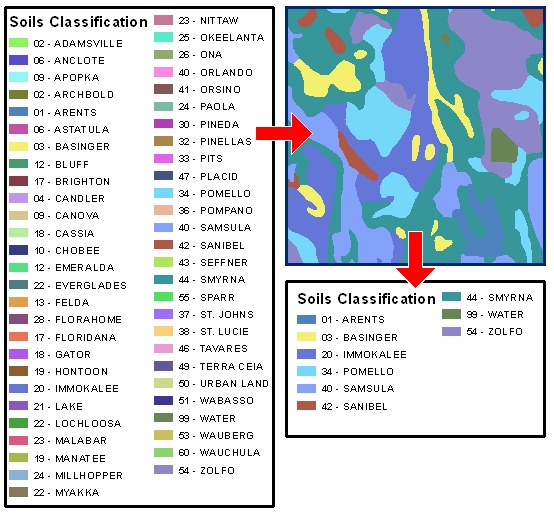
Version 4.1 adds a new element to the collection MapLogic layout elements called a Dynamic Legend. This element creates a subset of an ArcMap legend so only those symbols appear in the legend that are within the visible extent of the map. The Dynamic Legend will examine each item in the ArcMap legend and then check the map to see if there is a corresponding feature within the visible extent of the map. If a map feature is found then, then the symbol is included in the legend. If no map feature is found, then the symbol is not displayed.
Dynamic Legends can also be linked to a legend that is in a different section in the map book. This is useful if you want to create an independent legend page in your map book. There is no longer the need to convert the legend to graphic element and copy/paste them into a separate sheet. The Dynamic Legend will automatically keep your legend page in sync with the map pages in your map book.
Dynamic Legends work with single symbol, unique value, graduated color and graduated symbol legends.
Geo-Text Element
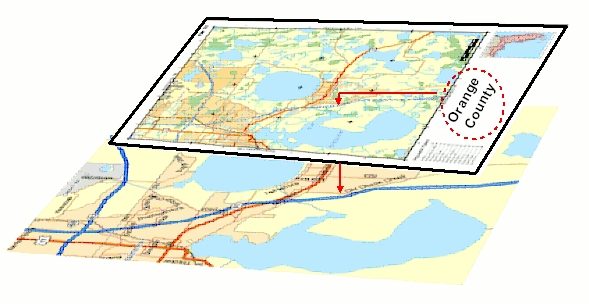
The Geo-Text element is a new dynamic text element introduced at version 4.1. Geo-Text is similar to the Series Text element in the sense that the text element gets refreshed as you move from page to page in a series. However, unlike the Series Text which could only extract information from the attribute table of the Index Layer (grid layer), the Geo-Text element can extract information from any layer’s attribute table.
For example, suppose your map series moves over a number of different municipalities and you would like a label on your map layout showing the name of the municipality you are currently on. With the Geo-Text element you can link the text label to the municipality layer and extract the name and place it as a label on the layout.
Python Customization
Prior to version 4.1 users could customized MapLogic Layout Manager using VBA (Visual Basic for Applications). This allowed users to develop features specific to their needs that did not exist in the extension. As the series moves from page to page MapLogic Layout Manager updates the layout and then runs any custom code created by users.
As ESRI is discontinuing support for VBA in ArcGIS, MapLogic Layout Manager now also supports Python as the method for customizing the extension.
We will continue to support VBA customization as well until it is permanently removed from ArcGIS.
There have also been a number of other minor enhancements to MapLogic Layout Manager as well as a number of bug fixes in version 4.1.
New Features In Version 4.0
The focus of Version 4.0 has been to modernize the internal code for MapLogic Layout Manager and to make it compatible with the new requirements set forth by ESRI@ with the release of ArcGIS 10.0. MapLogic Layout Manager is now entirely a .Net compatible product. There have been a few changes to the MapLogic Layout Manager interface to make it more compatible with the new ArcMap user interface:
Layouts Table of Contents
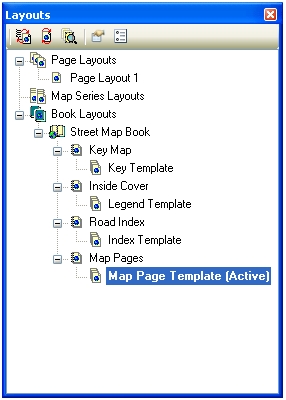
At 4.0 the Layouts Table of Contents is no longer a tab on the ArcMap Table of Contents. There is now a new Layouts dockable window. To display this window select View > Layouts Table of Contents from the MapLogic Layout Manager toolbar.
This new dockable window also has its own toolbar and some of the layout related tools have moved from the MapLogic Layout Manager toolbar to the Layouts dockable window.
MapLogic Element Explorer
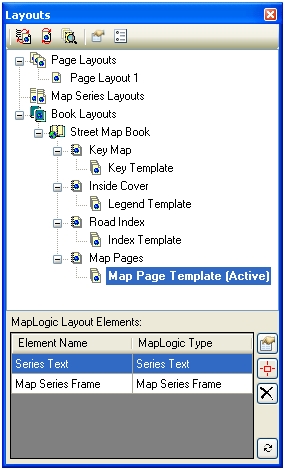
The Layouts Table of Contents now has a new window which will list all the MapLogic specific elements contained on the active layout. From this window users can flash the elements on the layout or directly access the properties of MapLogic Elements.
PDF Merge Tool
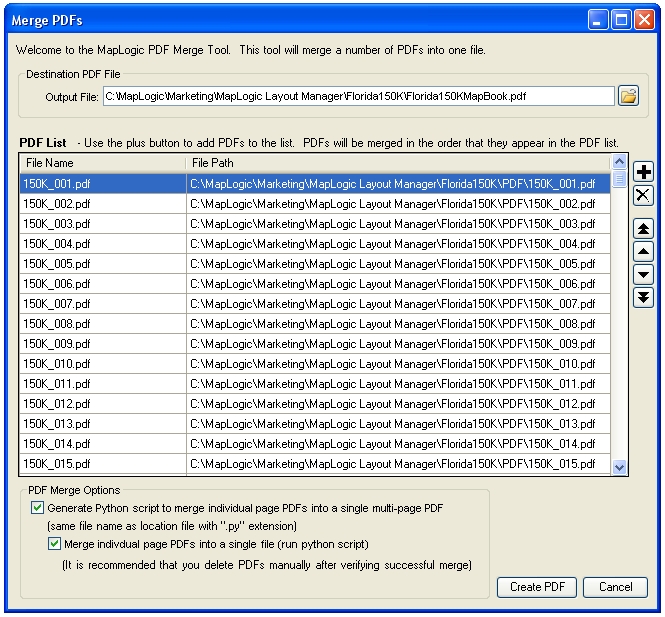
A new PDF Merge Tool is now available which allows users to select multiple PDFs and merge them into a single document.
Merge PDFs on Export
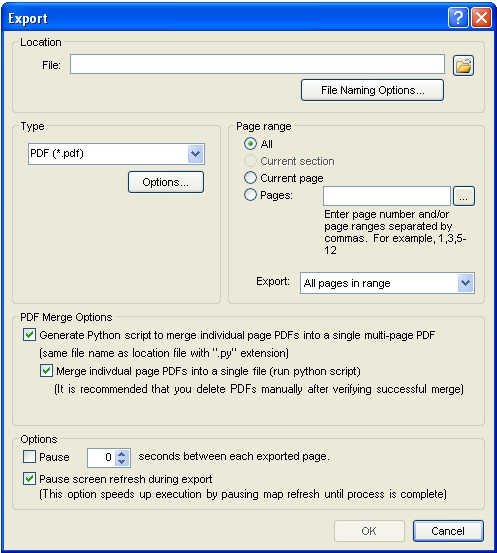
A new option on the export dialog now allows you to merge all of the exported PDFs into a single document.
Indexing Wizard
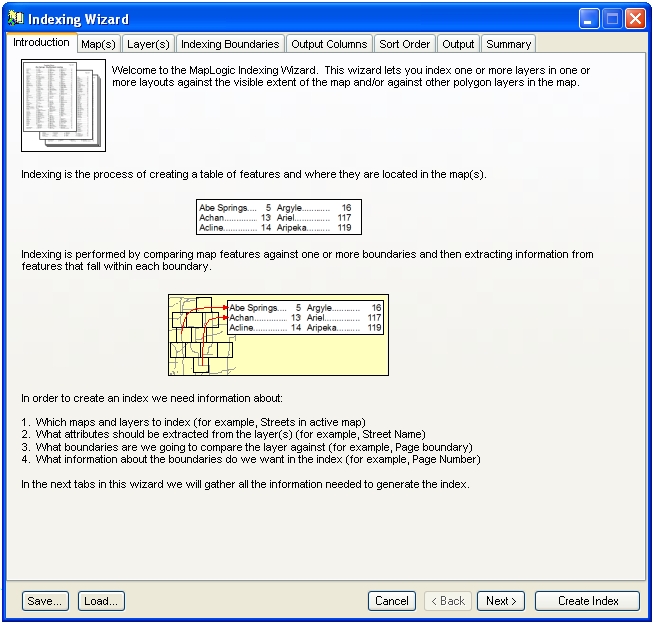
The Indexing Wizard has been updated with a more modern looking interface. It also no longer locks ArcMap while the wizard is being displayed. This allows you to continue to interact with the map as you are populating the parameters of the Indexing Wizard.
Adjacent Labels as Series Text
The Series Text Element now has a number of new reserved words which allows the user to place the adjacent page labels as series text elements. This gives the user much greater control over the placement and content of the adjacent page labels.
$$ADJACENT_PAGE_TOP – The page adjacent to the top edge of the current page
$$ADJACENT_PAGE_BOTTOM – The page adjacent to the bottom edge of the current page
$$ADJACENT_PAGE_LEFT – The page adjacent to the left edge of the current page
$$ADJACENT_PAGE_RIGHT – The page adjacent to the right edge of the current page
$$ADJACENT_PAGE_TOP_LEFT – The page adjacent to the top left corner of the current page
$$ADJACENT_PAGE_TOP_RIGHT – The page adjacent to the top right corner of the current page
$$ADJACENT_PAGE_BOTTOM_LEFT – The page adjacent to the bottom right corner of the current page
$$ADJACENT_PAGE_BOTTOM_RIGHT – The page adjacent to the bottom left corner of the current page
$$ADJACENT_PAGE_TOP_ALL – All pages adjacent to the top edge of the current page
$$ADJACENT_PAGE_BOTTOM_ALL – All pages adjacent to the bottom edge of the current page
$$ADJACENT_PAGE_LEFT_ALL – All pages adjacent to the left edge of the current page
$$ADJACENT_PAGE_RIGHT_ALL – All pages adjacent to the right edge of the current page
$$ADJACENT_PAGE_ALL – All pages adjacent to the current page on all sides
Preview Pages Toolbar

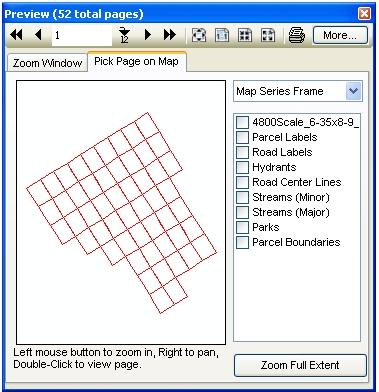
The Preview Pages toolbar has been modernized with a new look and now can display pages across the entire map book rather than only the current section.
There have also been a number of other minor enhancements to MapLogic Layout Manager as well as a number of bug fixes in version 4.0.
New Features In Version 3.2
The focus of Version 3.2 has been to make it easier to use MapLogic Layout Manager. Although MapLogic Layout Manager has always been a very powerful map book creation tool, understanding how to use the extension is not very easy. To help solve the problem this version brings the following enhancements to MapLogic Layout Manager:
Book Wizard
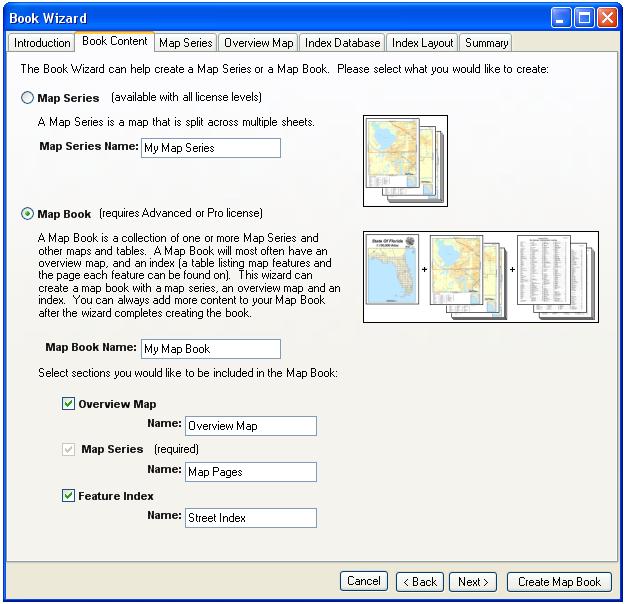
The Book Wizard is a new wizard enabling the generation of map series and map books using a few easy selections. The Book Wizard takes these selections and combines them with the most commonly used options to quickly generate a map book. With the new wizard users can create a complete map book with an overview map and street index in a matter of minutes.
Grid Wizard
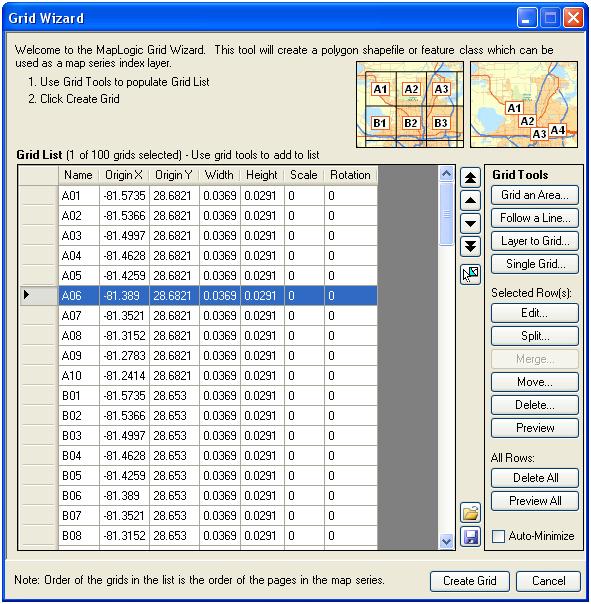
The Grid Wizard is a new wizard enabling users to create grid index layers. Although MapLogic Layout Manager offered two tools for generating index layers (Grid Index Wizard and Linear Index Wizard), these tools were rather limited in functionality and unfriendly to use. The new Grid Wizard combines the capabilities of these two tools and adds many more features including the ability to edit, merge, split and move individual grid cells. The new previewing capabilities allow the user to see what the grid is going to look like before the shapefile is created.
Indexing Wizard
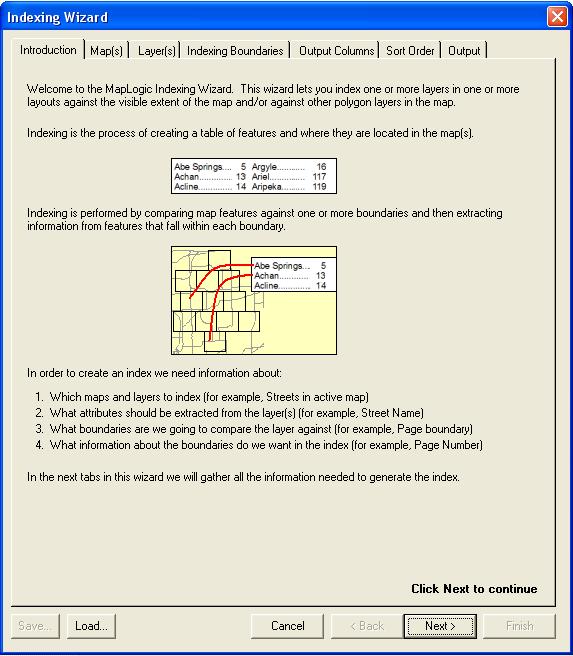
The Indexing Wizard is the new name for the Multi-Layout/Multi-Layer Indexing Wizard introduced in version 3.1. There have been a number of improvements and bug fixes and the wizard now replaces the Location Listing Database Wizard as the primary tool for creating indexes in MapLogic Layout Manager.
New Features In Version 3.1
Version 3.1 brings the following enhancements to MapLogic Layout Manager:
Multi-Layout/Multi-Layer Indexing Wizard
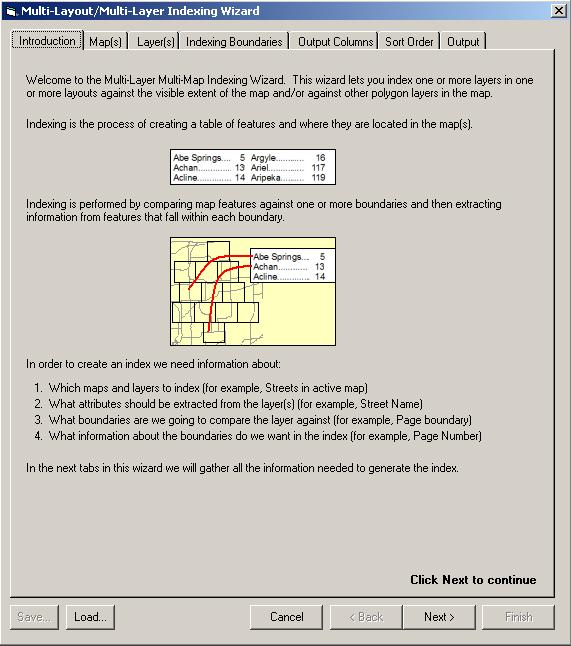
Version 3.1 introduces a new Pro level indexing wizard. This wizard contains a number of new features which users have requested, including:
- Index features in more than one layer. Prior to this release if the user wanted to create an index from more than one layer, each layer needed to be indexed separately and the resulting databases manually combined. With the new wizard you can select more than one layer to index in a single session.
- Index layers in more than one layout. With the new wizard you can index across all the sections and layouts in the map book. Furthermore, you can also index detail maps (a map zooming in on a specific area) on individual pages.
- Index layers against any polygon layer. Prior to this release indexing could only be done against the visible boundary of the map or the Map Series Index Layer. With the new wizard you can create an index using any polygon layer. Furthermore, you can also perform double indexing using the Map Series Index Layer AND a second polygon layer.
- Index sorting and clean up. In the standard indexing wizard, the resulting index database is in “raw” form. This means that records are not sorted and the database can contain duplicate records. The database was traditionally sorted and cleaned in the Series Index element. With the new wizard, the user has the option of performing cleanup and sorting during the database creation process. This allows you to use the resulting index with other software such as Crystal Reports and Excel without needing to do further cleanup of the database.
- Save wizard settings. Since indexing often is done on an infrequent basis, many users had difficulty remembering the indexing settings from the last time the process was performed. The new wizard allows you to save and load your indexing settings to file.
Select Print and Export Page Ranges Based On Queries and Selections
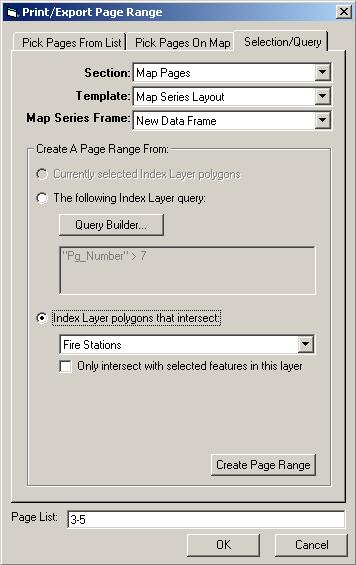
Many users expressed an interest in being able to print or export pages in a map series or book based on the polygons in the index layer that are currently selected or based on pages that containing certain information (for example, export pages in the series where there is a school or hospital).
A new tab has been added to the print/export page range dialog which allows you to create print and export page ranges based on these types of queries and selections.
Right to Left Series and Page Indexes
Series and page indexes now support right to left column layouts. This option helps support Arabic and Hebrew languages.
Expanding Page Index
Prior to this release if the user did not set aside enough space for a page index, the index would be truncated. A new option on the page index allows the index to expand until all the listings are displayed.
Turn Off Layer Sorting in Thematic Series
A new option has been added to thematic series properties to turn off layer sorting.
Relaxed Series Index Database Requirements
The Series Index Element no longer requires the “Listing” and “Page” fields in the DBF file it is accessing. This requirement was removed in order to support the new multi-layer indexing wizard.
Issues Addressed In Version 3.1
General Issues
Multiple Layouts Inadvertently Stored In ArcMap Templates (MXTs)
Under certain circumstances when editing an ArcMap template file (mxt) multiple layout containers were added to the template file. This caused errors when attempting to open a mxd that referenced the template. MapLogic Layout Manager now prevents multiple layouts from being stored in the ArcMap template.
Folder Tool Causes Error When Attempting To Create New File Name
There have been a few very rare instances on user computers where the folder tool fails to create a new shapefile or DBF file name. Although we have never been able to solve why this is happening on these client computers, we have added a second method for creating file names which should bypass this issue.
Map Series Frame
Index Layer Not Found When In A Group Layer
In previous releases the Map Series Frame failed to find the selected index layer when it was inside a group layer. This issue has been corrected in version 3.1.
Corner Adjacent Label Not Placed Properly
In previous releases adjacent page labels were not being placed correctly under certain circumstances. This issue has been corrected in version 3.1.
Mask Layer Transparency Causes Error On GeoPDF Export
Under certain circumstances adding transparency to the Map Series Frame’s mask layer causes GeoPDF export to fail. This issue has been corrected in version 3.1.
Series Locator Frame
Highlight Layer Transparency Causes Error On GeoPDF Export
Under certain circumstances adding transparency to the Series Locator Frame’s highlight layer causes GeoPDF export to fail. This issue has been corrected in version 3.1.
Page Index Element
Indexing Features With Empty or Blank Attributes Causes Error
In prior versions if the layer being indexed by a Page Index Element contained blank or empty attributes, the indexing failed. Users were required to add a definition query to the layer to remove these blank records. This issue has been corrected in version 3.1 and the definition query is no longer required.
Column Breaks Missing if Break Occurs at Top of Column
In prior versions the Page Index Element failed to place a column break if the column break was needed after the last listing in a column. The Page Index started the next column without placing the required break. This issue has been corrected in version 3.1.
Series Index Element
Column Breaks Missing if Break Occurs at Top of Column
In prior versions the Series Index Element failed to place a column break if the column break was needed after the last listing in a column. The Series Index started the next column without placing the required break. This issue has been corrected in version 3.1.
New Features In Version 3.0
Version 3.0 brings the following enhancements to MapLogic Layout Manager:
Thematic Series
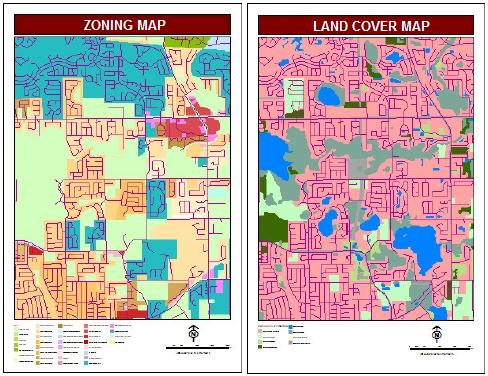
Themes represent a new way of creating multiple maps from the same map layout.
Up to now the only option available for creating multiple maps from the same layout has been creating a map series. In a map series, the content of the map remains constant but the visible extent of the map is panned and zoomed as you move from page to page.
In a thematic series, the layer visibility and order changes as you move from page to page. For example, you may want to create a land use and zoning map within the same layout. You can setup a land use theme and a zoning theme. As you move from one theme to the next, certain layers will automatically turn themselves on or off according to the rules of each theme.
Furthermore, you can set up series text elements that update themselves as you move from theme to theme. So, for example, your map title will automatically correct itself as you switch themes.
Finally, a thematic series can be combined with a map series. So a 50 page map series with 3 themes will generate 150 maps.
Search And Replace Text Across Multiple Layouts
This new tool allows you to search and replace text across all the layouts stored inside your MXD.
Because MapLogic Layout Manager allows you to store multiple layouts inside a single MXD, making small text changes can often become tedious as the user must activate each layout and make the changes.
With this new tool making text changes becomes much easier. For example, if the project title changes, you can use this tool to replace all instances of the title in the MXD with the new title.
Search and Replace is not limited text elements. You can choose to search through data frame names, layer names, and even layer symbol labels.
Copy Layers To Multiple Layouts
This is another tool added to make working across multiple layouts easier. With this tool you can copy a layer from your existing map to any or all maps stored inside your MXD. You no longer need to activate each layout one-at-a-time to paste the new layer.
You also have the option of replacing existing layers in the destination maps with the new layer based on certain matching criteria (name, data source, definition query, etc.)
Furthermore, when replacing an existing layer, you have the option of applying the definition query or symbology of the layer being replaced to the new layer.
Support For GeoPDF Export
The MapLogic Layout Manager export dialog now supports the GeoPDF export format. A number of clients have requested the ability to support this format with our extension.
Keep in mind that Terrago’s Map2PDF extension for ArcGIS must be installed on your computer for this option to be available through the export dialog. Also users will need to make sure they have installed the Map2PDF map book patch available at:
http://www.terragotech.com/software/map2pdf_arcgis_patch_2.exe
Run Custom Scripts In A Map Series
Clients sometimes have specific needs that are too specialized to be added to the core product. Adding the ability to run custom VBA scripts as a map series moves from page to page solves this issue.
With this new scripting ability you can pretty much do whatever you want as extension is moving from page to page.
Furthermore, we pass information to your script which lets you know what page in the series you are in, what polygon feature in the index layer the software is zooming to and even what map is being updated.
Pause During Print And Export
Sometimes the rapid fire printing or exporting of pages can overwhelm system resources or the print queue.
Version 3.0 adds the ability to pause between each page during printing and exporting. This allows your system additional time to print files that are already in queue as well as to do additional cleanup as needed.
Expand Map Series Mask Layer
At version 3.0 we have added the ability to expand (or contract) the Map Series Frame’s mask layer beyond edge of the current page’s polygon.
Some clients were using index layers that were using street centerlines as the boundary of pages in a map series. Since the mask layer was lining up exactly on the centerline, street labels on these roads were often cut in half.
In the latest version you can specify a distance by which the mask layer is expanded or contracted.
Change Map Series Reference Grid Based On A Field Value
Prior to version 3.0 the reference grid around the map frame (A1, A2, B1, B2, etc.) was static. If the user wanted to have a different reference grid on some of the pages in the map series, it was necessary to create a whole new template for those pages.
In the latest version you can set up multiple reference grids for your map frame and have the appropriate grid turn itself on depending on the page.
All you need to do is add a field in your index layer and populate it with the name of the grid you want to use in each page.
Page Index Wraps Around Other Elements On The Layout
At version 3.0 we have added the option to allow the Page Index to correctly wrap around other elements that appear on the layout.
Wrap Series Text Elements
At version 3.0 we have added the option to wrap series text elements if they get longer than a user specified number of characters.
New Series Text Reserved Words
At version 3.0 we have added a number of new reserved words that you can use in Series Text expressions; $$PROJECT_NAME, $$PROJECT_FULLNAME, $$PROJECT_PATH and $$PROJECT_DRIVE. These reserved words allow you to put links on maps to the source MXD.
New Export File Naming Options
At version 3.0 we have added a number of new options for creating file names during the export process. We have also changed the default settings on the naming options so that none of them are selected by default.
Beyond these changes there have been a number of tweaks and bug fixes all aimed at making MapLogic Layout Manager a more useful and robust product.
Issues Addressed In Version 2.21
Version 2.21 has been released to address a number of issues (i.e. bugs) found in prior versions of the extension.
Attempts to change the active layout in ArcGIS 9.2 causes ArcMap to crash
A small number of users are encountering this issue on multi-layout projects that were created prior to the ArcGIS 9.2 release. A new tool has been added to the MapLogic Layout Manager toolbar to address this issue. You can find this tool in:
Tools \ Advanced \ Make all maps in MXD 9.2 compliant...
IMPORTANT:
This tool may reset any legends that you have placed on any of your layouts. You may need to fix the settings on your legend element after running this tool. This may also apply to north arrows, scale bars and scale text as well.
Please note that this is an interim solution to this issue. This tool may not correct the problem in all cases. We are releasing this patch due to the critical nature of the problem. ESRI has confirmed this problem and has assigned it an incident number (#NIM006855) and is working on a solution to be included in a future ArcGIS service pack.
DO NOT USE THIS TOOL unless you are encountering the above described issue.
Export file naming options are being ignored by the extension
This issue has been corrected in Version 2.21.
Indexing of polygon layers not capturing all features on page
This issue has been corrected in Version 2.21.
Better handling of certain errors during indexing
When indexing feature layers certain features caused the indexing process to crash. This issue has been corrected in Version 2.21.
Better cleanup during the export process
MapLogic Layout Managerexport routines have been updated to account for changes that ESRI has made to the export cleanup process.
Proper placement of Key Map labels
Key Map labels were not being positioned on the map correctly when index layer and data frame did not have the same Coordinate System. This issue has been corrected in Version 2.21.
Indexing of multi-point feature layers encounters errors
This issue has been corrected in Version 2.21.
Deleting Master Template in multi-template map book section causes "CountTemplatePage" error
This issue has been corrected in Version 2.21.
RELEASE HISTORY (INFORMATION ABOUT
PRIOR VERSIONS)
New
Features In Version 2.2
Version 2.2
brings the following enhancements to MapLogic Layout Manager:
Support For ArcGIS
9.2
MapLogic
Layout Manager 2.2 is our first release of the extension for the ArcGIS 9.2
platform. Please note that there are
three separate setup programs for MapLogic Layout Manager (ArcGIS 8.3, ArcGIS
9.0-9.1 and ArcGIS 9.2).
Anchoring
At version
2.2 we have added the option of anchoring any element on your layout to the
layout page or any other element on the layout. Anchoring allows you to specify the position of an element to an
exact location with respect to the page layout or another element on your
page. Anchoring is useful for a number
of reasons:
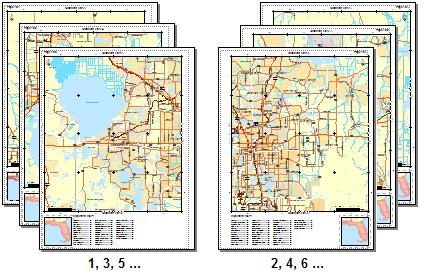
1. Anchoring allows you to setup your page
layouts for two-sided printing. You can
anchor elements so that they have different positions on odd and even
pages. For example, you may want the
page number to always be on the outside edge of the layout. Or you may want the layout to have a
different binding margin on odd and even pages.
2. As you move from page to page in a map book
some elements can change in size. By
anchoring these elements you insure that the relative position of the element
does not change. For example, even
though your scale bar might change in size, you can insure it is always
centered with respect to the map by anchoring it to the center of the map.
3. You can move elements on and off the
page. You can setup your anchor
properties so that some elements are only visible on some pages. For example, you may want to have an inset
map appear on certain pages in your map book.
By setting up its anchor properties, the extension will move the element
off the page on some pages and move it back on the page on others.
Map Series Frame
Enhancements
Transparent Mask Layer
At version
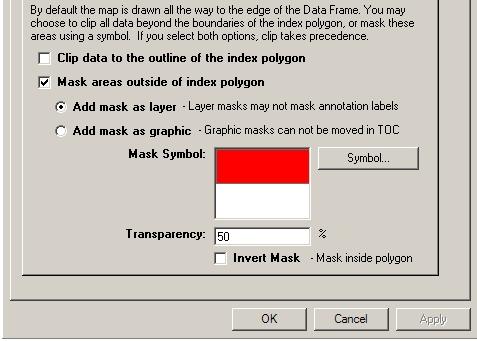
2.2 we have added support for transparency on the Mask Layer of the map series
frame. This allows you to “fade” areas
adjacent to the current page boundaries of your map.
Invert
Mask Layer
At version
2.2 we have added support for inverting the Mask Layer of the map series
frame. In some cases it may be useful
to mask areas inside the index polygon rather than outside of the index
polygon. The Invert Mask Option allows
you to mask areas inside the index polygon.
Series Locator
Frame Enhancements
Transparent Highlight Layer
At version
2.2 we have added support for transparency on the Highlight Layer of the series
locater frame. This allows you to
“fade” areas of the current page boundaries of your locator map.
Page And Series
Index Element Enhancements
Updating Settings For All Columns Simultaneously
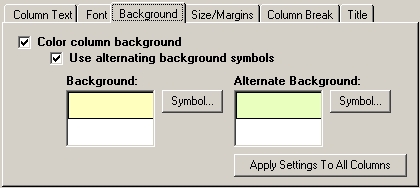
At version
2.2 we have added the ability to modify the symbols (fonts, background colors
and margins) for all columns in your index simultaneously. Prior to version 2.2, the user was required
to make the changes on every column individually.
Newly Added Columns Use Symbol Settings of Existing Columns
Prior to
version 2.2, when a new column was added to an index, it would be assigned
default symbols. At this version, new
columns receive the currently selected symbols.
Printing
Enhancements
Support For Raster Output Quality (ArcGIS 9.0-9.2)
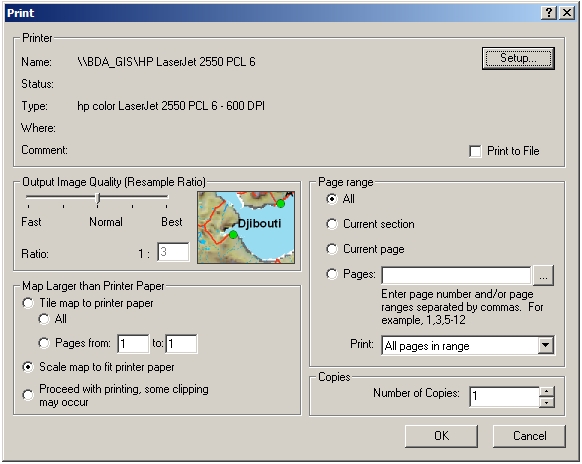
At version
2.2 we have added support for setting the raster output quality on the print
dialog.
This option
is not available for ArcGIS 8.3.
Print To File For All Printer Types (ArcGIS 9.0-9.2)
At version
2.2 we have enabled “Print to File” on all selected printers. Prior to this version, print to file was
only enabled for PostScript printers.
This option
is not available for ArcGIS 8.3.
Issues Addressed
In Version 2.2
General Issues
Changing Layouts During An Edit Session Confused Editor Toolbar
Prior to
version 2.2, if the user changed the active layout during an edit session, the
editor toolbar could sometimes get confused as to whether it is currently
editing or not.
At version
2.2 the user must stop the edit session before changing the active layout.
Zoom Buttons On Preview Dialog Not In Same Order As ArcMap
At version
2.2 the zoom buttons on the preview dialog have been put in the same order as
ArcMap’s Layout zoom buttons.
Invalid And Grouped Layers Cause Errors
Prior to
this version, invalid layers (layers with “!” next to their name in ArcMap’s
table of contents) as well as grouped layers could sometimes cause errors with
a number of functions in the extension.
This has been corrected at version 2.2.
Grid And Linear Index Wizards Fail If Projection Has Not Been Set
Prior to
this version, if no projection (coordinate system) has been set for the map
frame, the wizards returned a generic error message. At this version the user is prompted to set the coordinate system
for the map frame before using the wizards.
Map Series Frame
Map Series Frame Clip Extent Settings Interfering With Data Frame Clip To
Shape Settings
Prior to
this release the Map Series Frame properties would delete any user assigned
clip to shape settings for the data frame.
At version 2.2 the map series properties only override user assigned
clip to shape settings if the user has selected to clip the data on the Map
Series Properties Options tab.
Series And Page
Index Frames
Improper Sorting Of Tables With International Characters
Prior to
this release if the listings in the index contained international characters,
the listings were not correctly sorted.
This has been corrected at version 2.2.
Improper Indexing Of Selection Layers
Prior to
this release while indexing ArcMap Selection Layers, All records in the
database were being indexed rather than only those that were contained in the
selection layer. This has been
corrected at version 2.2.
Long Colunm Names Create Errors
Prior to
this release long column names in listing database created errors. At version 2.2 the maximum length of the
column name has been reduced to 10 characters.
Please note
that this limitation does not affect the column Title which can be as long as
needed.
Indexing Creates Errors On Certain Features
Prior to
this release while testing if a feature intersects the current page’s polygon,
ArcMap returned errors in rare cases. Although
the reason for this error is not yet understood, the code has been modified to
capture the error and continue the indexing process.
Printing And
Exporting
Printing And Exporting Layouts With Metric Units Sometimes Resizes Elements
On The Map
Prior to
this release printing and exporting metric layouts could sometimes cause the
map frame on the layout to resize itself after the first page. This issue has been corrected in version
2.2.
Output Raster Quality Settings Ignored
Prior to
this release printing and exporting dialogs were ignoring output raster quality
settings. This issue has been corrected
in version 2.2.
VERY
IMPORTANT: We have not been able to address this issue
in ArcGIS 8.x.
Selecting All Pages On Pick From Pages Dialog Creates Error
Prior to
this release selecting all pages of a map series layout from the Pick From
Pages dialog created an error. This
issue has been corrected in version 2.2.
New
Features In Version 2.1
Version 2.1
brings the following enhancements to MapLogic Layout Manager:
Individual Pages
Now Listed In Layouts Tab
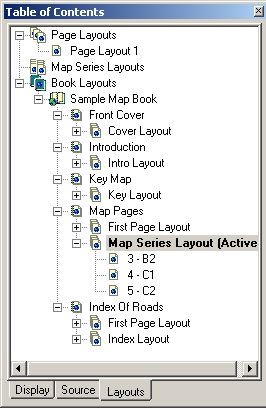
At version
2.1 we have added the option of listing the individual pages contained in map
series and book layouts in ArcMap’s Table of Contents. Individual page names will also be displayed
if the user has set the new Page Name field map series property (described
later in this document).
Double-clicking
on a page will display its content.
This eliminates the need to change the Default Page value in the
properties of a Map Series Frame in order to see the layout for that page.
This
feature is disabled for Viewer licenses.
Viewer licenses must continue to use the Preview tool to see individual
pages.
IMPORTANT:
This option is not turned on by default in your existing projects. To turn on this feature, select View\Series
and Book Pages in Table of Contents from the MapLogic Layout Manager
Toolbar.
IMPORTANT:
By default, only the first 500 pages are listed for each template. The more pages listed in the Table of
Contents, the slower the performance of the software will be. You can adjust the maximum number of pages
listed by selecting View\Maximum Pages Listed in Table of Contents… from
the MapLogic Layout Manager Toolbar and entering a new value.
The Active Layout
Toolbar
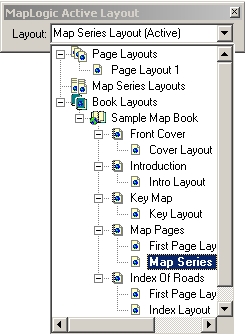
At version
2.1 we have added a new toolbar to ArcMap called the MapLogic Active Layout
toolbar. This toolbar mimics the
content of the Layouts tab in ArcMap’s Table of Contents, but it can be docked
just like any other toolbar.
Using this
toolbar, you no longer need to switch back and forth between the Display tab
and the Layouts tab when activating layouts.
Please note
that adding, removing, copy/pasting and other similar tasks must still be
performed on the Layouts Tab. The
Active Layout Toolbar can only be used to activate layouts.
Select Print And
Export Pages Using Map Or List
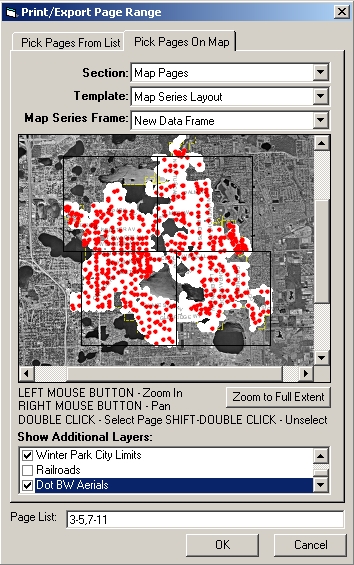
At version
2.1 we have added the ability to set the print and export page range from a
list that mimics the Layouts Tab in the Table of Contents or by clicking on
individual pages on the map. These
options provide a more flexible method for picking pages to be printed and
exported.
You can
access these tools by clicking on the “…” button next to the page range
list on the Print and Export dialogs.
Map Series Frame
Enhancements
Page Name Field
At version
2.1 we have added a new property to the Map Series Frame, which allows you to
select a field in your Index Layer as a Page Name field. The value of this field will be displayed in
the Table of Contents as well as the new print and export tools. This will allow you to select pages based on
their name rather than their page number.
IMPORTANT:
The file naming options on the export dialog will no longer use the Sort
field to name the file. Instead the
Name field is used if it has been selected.
Reference Scale Field
At version
2.1 we have added a new property to the Map Series Frame, which allows you to
select a field in your Index Layer as a Reference Scale field. This field allows you to modify the
Reference scale for the map series frame as it moves from page to page.
Individual Symbols For Adjacent Page Labels
At version
2.1 we have added the option of selecting a different symbol for the adjacent
page labels for each of the four sides of the Map Series Frame. This allows you to use individualized
background marker symbols such as arrows for the adjacent page labels.
Individual Offsets For Adjacent Page Labels
At version
2.1 we have added the option of selecting a different offsets for the adjacent
page labels for each of the four sides of the Map Series Frame. This allows for better coordination with any
grids that you may have placed around the data frame.
Page and Series
Index Enhancements
Joined Fields
At version
2.1, Page and Series Indexes can detect and index the values contained in
Joined Fields of feature layers.
We plan to
eventually add the ability to detect joined fields to all field-based
properties of all elements in MapLogic Layout Manager.
Indexing The Center Point Of Annotation Elements
At version
2.1, Page and Series Indexes have the option of indexing the position of
Annotation Labels based on their center point rather than the entire extent of
each label. Previously, this option was
limited to Polygon and Line features.
Series Text
Enhancements
Joined Fields
At version
2.1, Series Text Elements can detect and index the values contained in Joined
Fields of feature layers.
We plan to
eventually add the ability to detect joined fields to all field-based
properties of all elements in MapLogic Layout Manager.
Create Grid Index
Wizard Enhancements
Sequential Page Numbers
At version
2.1, the Grid Index Wizard now assigns sequential page numbers with no gaps to
the page number field when creating an Index Layer. Prior to version 2.1 the wizard would insure the proper order of
the pages but allowed for gaps in the assigned page numbers.
This
modification has no effect on the behavior of the extension and was made only
to avoid confusion.
Default Values In All Dialog Properties
At version
2.1, the Grid Index Wizard now assigns default values to all properties in the
dialog. This helps avoid errors that
users often encountered when some necessary properties were left blank.
Issues Addressed
In Version 2.1
Map Series Frame
Map Series Frame Ignoring Short Integer Fields
Prior to
this release the Map Series Frame properties dialog failed to list short
integer fields in its list of available fields. This issue has been corrected in version 2.1.
Series Key Frame
Series Key Frame Ignoring Current Layout’s Map Series Frame
Prior to
this release the Series Key Frame did not properly link to a Map Series Frame
that was located on the same layout as the Key Frame. This issue has been corrected in version 2.1.
Location Listing
Database Wizard
Incorrect Indexing Of Rotated Data Frames
Prior to
this release the Location Listing Database Wizard was incorrectly indexing the
location of features when the map rotation was a value other than zero. This is due to an issue with an ESRI command
that does not return correct values on rotated data frames. However, we were able to develop a different
methodology which does not rely on the command in questions. This issue has been corrected in version 2.1
for ArcGIS 9.x only.
VERY
IMPORTANT: We have not been able to address this issue
in ArcGIS 8.x and indexing of rotated data frames continues to be inaccurate on
the ArcGIS 8.x platform!
Errors Indexing Annotation Layers
Prior to
this release the Location Listing Database Wizard encountered errors when
attempting to index certain types of Annotation Layers. This issue has been corrected in version
2.1.
Page Index Element
More Than One Page Index On The Same Layout Caused Refresh Problems
Prior to
this release if there existed more than one Page Index element on the Layout,
only the first index was correctly updated.
This issue has been corrected in version 2.1.
Errors When “Intersect” Options Selected
Prior to
this release the Page Index Element returned errors under certain circumstances
if the “Intersect Map Extent” or the “Intersect Index Polygon” options were
selected. This issue has been corrected
in version 2.1.
Incorrect Indexing Of Rotated Data Frames
Prior to
this release the Page Index Element was incorrectly indexing the location of
features when the map rotation was a value other than zero. This is due to an issue with an ESRI command
that does not return correct values on rotated data frames. However, we were able to develop a different
methodology which does not rely on the command in question. This issue has been corrected in version 2.1
for ArcGIS 9.x only.
VERY
IMPORTANT: We have not been able to address this issue
in ArcGIS 8.x and indexing of rotated data frames continues to be inaccurate on
the ArcGIS 8.x platform!
Errors Indexing Annotation Layers
Prior to
this release the Page Index Element encountered errors when attempting to index
certain types of Annotation Layers.
This issue has been corrected in version 2.1.
New Features In Version 2.0
Version 2.0 brings the following enhancements to MapLogic Layout Manager:
Page Index Element
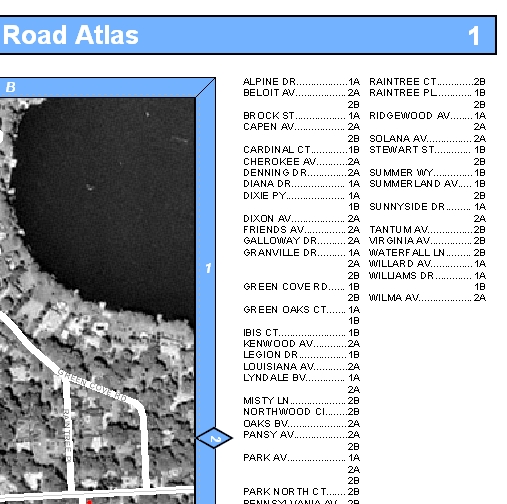
We are pleased to introduce a new element called the page index at version 2. The page index is similar to the series index except that it creates an index for the current page in the map series. While a series index usually comes after the map series and list the location of features in the entire map series, the page index is placed on the same layout as the map series and lists where features are located on the page.
Map Series Frame
Faster Performance
Users will notice much faster performance on sorted map series, in particular those that have a large number of pages. For the greatest performance boost, bring up the properties of your map series frame, change/unchange a parameter and click OK (i.e. force a refresh of the properties).
This faster performance also speeds up the performance of all other objects that rely on the map series frame (for example, series indexes, series text, etc.)
Better Placement Of Adjacent Labels
The adjacent page labeling engine has been modified to position labels better when dealing with complex polygons in the index layer.
Corner Adjacent Labels
You can now add corner labels to the map series frame, if you setup your index layer polygons so they are the same aspect ratio as your map series frame.
Select Adjacent Label Sides
You can now turn off adjacent page labels on each side of the map series frame. For example, if you don’t want labels on the binding side of the map book, you can turn them off.
Mask Areas Outside Index Polygon
Before version 2, you had the option of clipping the areas outside of the boundaries of the current page’s index polygon. Now you also have the option of masking those areas using a symbol of your choice.
Series Locator Frame
Highlight Layer
At version 2 we have added the option of displaying the current page symbol of a locator frame as a layer in the map. This allows you to move the position of the highlighted area in the table of contents. In other words, you can choose what layers are placed on top of the highlighted area and what is place under it.
Invert Highlight
At version 2 you have the option of inverting the highlighted area. In other words, you can choose to highlight everything but the location of the current page.
Series Index Frame
“As Is” Listing Database
At version 2 you can now create “As Is” listing databases. An “As Is” database stores the appropriate page numbers and row and column labels in the database when it is created. This eliminates the need to link the database to the map series frame in order to correct the page numbers and column labels.
This option increases the performance of the series index. However, this option will require that you recreate the database whenever changes are made in the map book that modify the page numbers or row and column labels in the map series.
$$DOTS Reserved Word
Column expressions now support a new reserved word: $$DOTS. This reserved word expands the column text with dots to fill the entire width of the column. For example:
[LISTING]$$DOTS $$PAGE_NUMBER
Will result in the following:
Version 2.0 brings the following enhancements to MapLogic Layout Manager:
Page Index Element
We are pleased to introduce a new element called the page index at version 2. The page index is similar to the series index except that it creates an index for the current page in the map series. While a series index usually comes after the map series and list the location of features in the entire map series, the page index is placed on the same layout as the map series and lists where features are located on the page.
Map Series Frame
Faster Performance
Users will notice much faster performance on sorted map series, in particular those that have a large number of pages. For the greatest performance boost, bring up the properties of your map series frame, change/unchange a parameter and click OK (i.e. force a refresh of the properties).
This faster performance also speeds up the performance of all other objects that rely on the map series frame (for example, series indexes, series text, etc.)
Better Placement Of Adjacent Labels
The adjacent page labeling engine has been modified to position labels better when dealing with complex polygons in the index layer.
Corner Adjacent Labels
You can now add corner labels to the map series frame, if you setup your index layer polygons so they are the same aspect ratio as your map series frame.
Select Adjacent Label Sides
You can now turn off adjacent page labels on each side of the map series frame. For example, if you don’t want labels on the binding side of the map book, you can turn them off.
Mask Areas Outside Index Polygon
Before version 2, you had the option of clipping the areas outside of the boundaries of the current page’s index polygon. Now you also have the option of masking those areas using a symbol of your choice.
Series Locator Frame
Highlight Layer
At version 2 we have added the option of displaying the current page symbol of a locator frame as a layer in the map. This allows you to move the position of the highlighted area in the table of contents. In other words, you can choose what layers are placed on top of the highlighted area and what is place under it.
Invert Highlight
At version 2 you have the option of inverting the highlighted area. In other words, you can choose to highlight everything but the location of the current page.
Series Index Frame
“As Is” Listing Database
At version 2 you can now create “As Is” listing databases. An “As Is” database stores the appropriate page numbers and row and column labels in the database when it is created. This eliminates the need to link the database to the map series frame in order to correct the page numbers and column labels.
This option increases the performance of the series index. However, this option will require that you recreate the database whenever changes are made in the map book that modify the page numbers or row and column labels in the map series.
$$DOTS Reserved Word
Column expressions now support a new reserved word: $$DOTS. This reserved word expands the column text with dots to fill the entire width of the column. For example:
[LISTING]$$DOTS $$PAGE_NUMBER
Will result in the following:
|
STREET |
PAGE |
|
Main Street………….….. |
1 |
When Same Listing Occurs In Multiple Locations Only List First And Last Location
At version 2 we have added the option of showing only the first and last location of a feature. This is particularly useful with things like long roads that cross large areas of a map series.
So instead of:
|
STREET |
PAGE |
Grid |
|
Main Street |
3 |
A1, A2, B3, B4, C4, D4 |
You can have:
|
STREET |
PAGE |
Grid |
|
Main Street |
3 |
A1 - D4 |
Drop Text From Subsequent Rows When Listings Are The Same
At version 2 we have added a new option which allows you to drop repeating text from an index and give it a more profession appearance. For example:
|
CITY |
STREET |
PAGE |
|
Gainesville |
Main St |
1,4 |
|
Gainesville |
University Ave |
2 |
|
Gainesville |
Willow Rd |
5 |
|
Springfield |
Lincoln Ave |
12 |
|
Springfield |
Main St |
9,10 |
Will become:
|
CITY |
STREET |
PAGE |
|
Gainesville |
Main St |
1,4 |
|
University Ave |
2 |
|
|
Willow Rd |
5 |
|
|
Springfield |
Lincoln Ave |
12 |
|
Main St |
9,10 |
Add Starting Break
Prior to version 2 column breaks would only be placed after first character of the listings changed. At version 2 we have added an option to place an initial break in the listings. For example:
|
STREET |
PAGE |
|
Allen Ave |
3 |
|
Arbor St |
2 |
|
B |
|
|
Boardwalk Ave |
2 |
Will become:
|
STREET |
PAGE |
|
A |
|
|
Allen Ave |
3 |
|
Arbor St |
2 |
|
B |
|
|
Boardwalk Ave |
2 |
General Changes
Better Support For Grouped And Nested Layers
We have modified our dialogs to do a better job of supporting grouped layers. In the past many of the dialogs would only show the top-most layers in the data frame and ignore any nested or grouped layers. Now MapLogic Layout Manager mines down through all the layers. This is particularly useful when dealing with data like ArcGIS StreetMap which has many nested layers.
Additional Export Formats (ArcGIS 9 Only)
We have added additional export formats to the ArcGIS 9 version of MapLogic Layout Manager. The export dialog no supports all the formats that are supported by ArcGIS 9.
Drop Base File Name While Exporting
We have added a new file naming option to the export dialog. This option allows you to drop the base file name from the export files. Prior to version 2, the export file names always had a base name in common. Some users expressed the need to remove this base name, so we have added an option for that.
“As Is” Location Listing Database
As mentioned previously, the Location Listing Database Wizard can now create “As Is” databases. An “As Is” database stores the appropriate page numbers and row and column labels in the database when it is created. This eliminates the need to link the database to the map series frame in order to correct the page numbers and column labels.